Monday, 31 August 2015

How to run IconProStudio on Windows server 2012 R2

If you are unable to run IconPro Studio in Windows Server 2008 & its showing"WMVCORE.DLL is missing from your computer" error.


The error is caused by not having the Windows Media Player libraries installed. You can easily resolve the error by installing the Desktop Experience for Windows Server 2008 which includes Windows Media Player.
 Please follow below steps for troubleshooting:-


Click on Server Manager button which locate on the taskbar. Server Manager Dashboard window will be open & click on Add Role and Feature.


 By clicking on add role & feature, its wizard will start & click on Next.


 Now Select Role based or feature based installation & click on Next.


Now check mark on select a server from the server pool & click on Next.


No need to add any roles just simply click on Next.

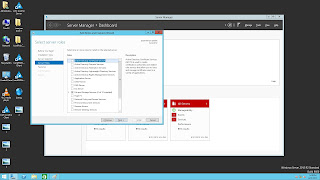
Now select User interface and infrastructure & double click on it. Now check mark on Desktop Experience feature & click on next.


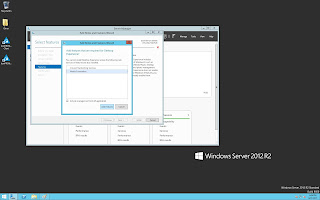
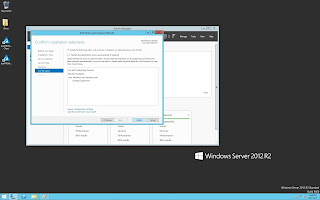
When you click on next a pop up will come for required feature. Select Media Foundation & click on add feature & click on install.


Now Desktop Experience feature will start loading.


It will takes some time, when its process will be completed click on close.


Friday, 7 August 2015

How to work with Multiplicity

1. Download Latest version of Multiplicity & install it on the controller. Double click on Multiplicity & make it as Primary.


2. Install Multiplicity on your laptop or PC & launch it & make them as secondary & it provide a passcode to you.

3. Now select KVM option in Primary Multiplicity & click on Add computer. User can add computer name where multiplicity run or select computers from list as shown below image:-


4. When you add selected computer it ask for a Passcode. Now enter the pass code of added computer (secondary Multiplicity computer) as shown below image:-


5. When you enter the passcode, selected PC will be added on Primary Multiplicity as shown below image:-


6. Now double click on connect button of added computer. Added computer will shown on your videowall as shown below image:-


Monday, 3 August 2015

How to add Multiple browser in IconPro Studio with Google Chorme

Install the latest version of IconPro Studio.
Goto App n Vnc tab & select any app & edit it.
Fill the credential as you shown in below image


After the credential click on add button, your browser will be automatically added in Application option in input streams & same for second browser. When you double click on added browser, it will shown on your videowall.


How to add Multiple browser in IconPro Studio with Internet Explorer

Install the latest version of IconPro Studio.
Goto App n Vnc tab & select any app & edit it.
Fill the credential as you shown in below image.


After the credential click on add button, your browser will be automatically added in Application option in input streams & same for second browser. When you double click on added browser, it will shown on your videowall.


How to add image in IconPro Studio with Windows Photo Viewer

Install the latest version of IconPro Studio.
Goto App n Vnc tab & select any app & edit it.
Fill the credential as you shown in below image.

After the credential click on add button, your image will be automatically added in Application option in input streams. When you double click on added image, it will shown on your videowall.


How to add VNC in IconPro Studio Application.

Install the latest version of IconPro Studio & vnc viewer on your controller.
Install Delta VNC Server on client PC or Laptop which you want to view on the Controller & make sure firewall should be disable on both machine. Now run Delta VNC Server on client PC & Run IconPro Studio on Controller.


Now goto App n VNC Properties Tab & click on Test VNC & edit it as your environment & fill the credential.


After the credential click on add button, VNC machine will be automatically added in VNC option in input streams.
When you double click on added vnc, it will shown on your videowall.


Wednesday, 15 July 2015

How to remove datapath driver from Safe mode


Normally we can remove the drivers from control panel in normal mode, but the datapath driver will be uninstall only  from "safe mode". With below steps you can remove the drivers from safe mode.


To begin entering Safe Mode,restart your system, Just before the Windows 7 splash screen appears, press the F8 key to enter Advanced Boot Options. On the Advanced Boot Options screen, use the arrow keys to highlight the safe mode option you want, and then press Enter.


When your computer is in safe mode, you'll see the words Safe Mode in the corners of your monitor.


Now you can uninstall easily datapath driver from add remove program in control panel.


Now you can install the fresh driver in normal mode also.

How to Identify output & input cards in controller

If you want to identify the output & input cards without open the controller, you can check from below steps:-
Right click on My Computer & click on Properties.
Select Device manager & Click on Display Adapters for Output cards.


For Identification of Inputs Cards please go through below steps:-
Right click on My Computer & click on Properties.
Select Device manager & Click on Sound video and game controller for input cards.


Tuesday, 14 July 2015

How to run IconProStudio on Windows server 2008

If you are unable to run IconPro Studio in Windows Server 2008 & its showing
"WMVCORE.DLL is missing from your computer" error


The error is caused by not having the Windows Media Player libraries installed. You can easily resolve the error by installing the Desktop Experience for Windows Server 2008 which includes Windows Media Player.
Please follow below steps for troubleshooting:-


Click the start menu and start to type Turn Windows features on or off and click it when it appears in the menu.


Click Features and click Add Features. Find the Desktop Experience entry and tick the check box. Click Add Required Features in the new dialogue which pops up.


Click Next and then Install to install the required features. Click Close and then Yes to restart your computer and complete the installation.
When your computer restarts, click Close and Windows Media Player will now be available.


Then reboot your System.